Setup Revenue Distribution (Cloud)
Revenue Distribution in the PMS is used to allocate specific items or charges—such as breakfast, parking, or resort fees—as part of the room rate. Any charge set up in Revenue Distribution will be included in the total room rate, rather than added on separately. This helps streamline pricing, improve guest clarity, and ensure that bundled services are properly accounted for within your revenue reports.
Path: Management > Rates > Rev Distrib (Revenue Distribution)
 Note: Revenue Distribution is configured per room type and is effective across all seasons.
1. Select the Room Type.
2. Click "Add New Row".
3. Select the item to include in the rate from the "Acct Code" dropdown.
4. Enter a value in either the "Fixed Amount" field or the "%" field.

Using a fixed amount ensures the same charge is applied regardless of the room rate, which can be useful for consistent pricing but may not scale with rate changes. Using a percentage allows the charge to automatically adjust based on the room rate, ensuring it remains proportional even when rates vary.
5. Select "Yes" or "No" in the "Per Room" field; if "No", specify whether the amount applies per adult and/or per child—note that there is no separate child rate, so the charge will be the same as for an adult.
6. Select the applicable tax code for the item, if any. The available options are drawn from the Revenue Tax codes configured in the Property Settings > Taxes section under Management. You can choose one, multiple, or none.

The "Tax %" field will always display 0.00; however, the appropriate tax will still be applied based on your selection and the setup in the Taxes section.
7. The "Serv Fee" per item feature is currently unavailable.
8. Click "Save".
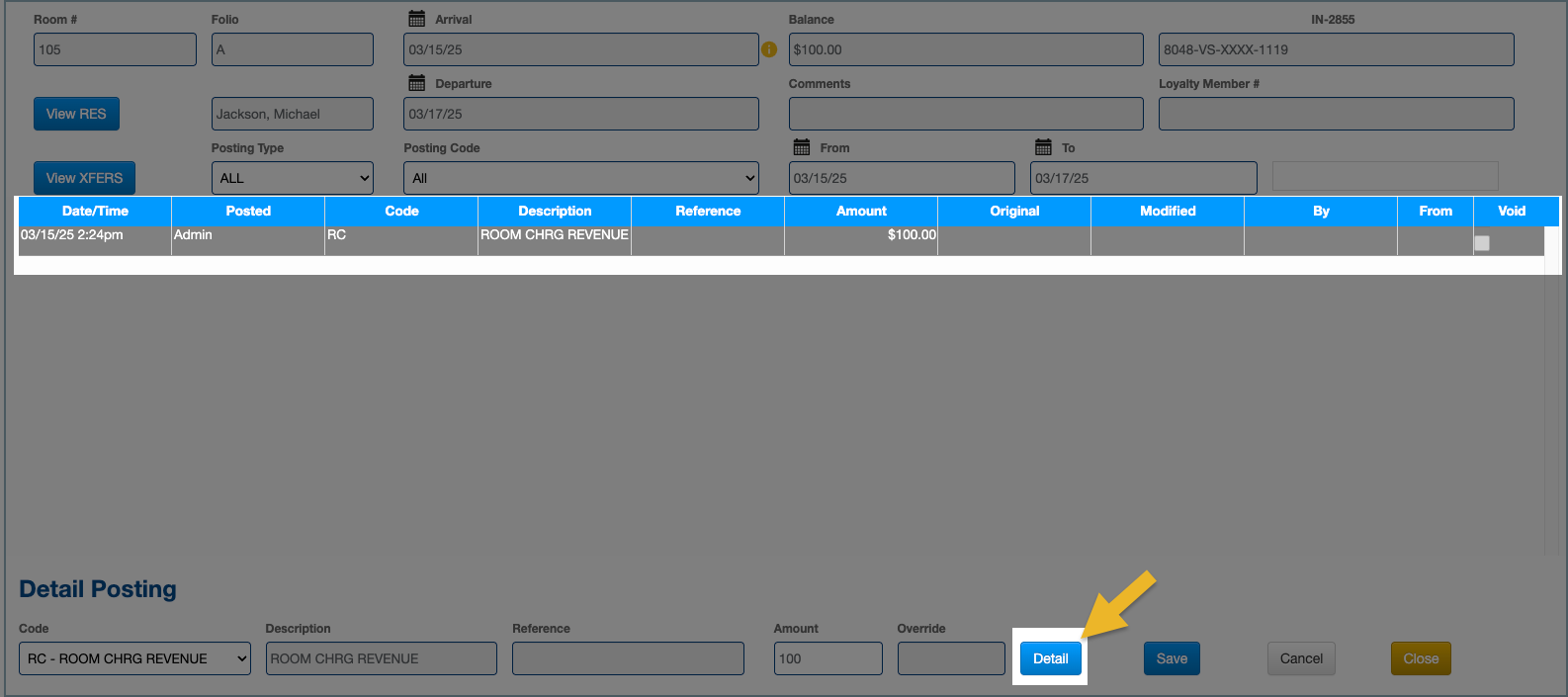
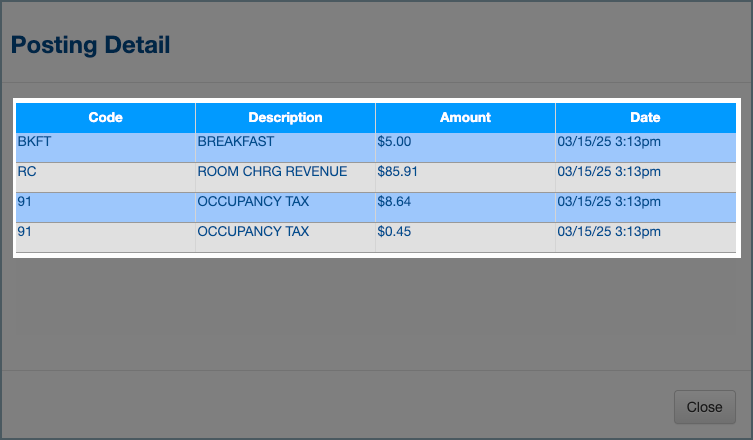
9. When "Room & Tax" is posted, you can view the distribution by clicking the "Details" button.
9a. If your rates are setup as Tax Not Included...
9a. If your rates are setup Tax Not Included, you will see the room charge along with a separate line for the tax associated with each included item. The revenue from the item itself will be part of the Room Charge Revenue.
9b. If your rates are setup as Tax Included...
9b. If your rates are setup as Tax Included, only the total room charge will be displayed. The breakdown of each item and its associated tax can be viewed by clicking the "Details" button.